
 English

Embedding the Crosswalk Project
The Crosswalk Project embedding API enables you to embed the Crosswalk Project runtime in an Android application. You can then load a web page (or whole web application) into the embedded runtime, similar to how you might with an Android WebView.
Using the embedding API is only recommended for cases where you have a substantial amount of Java code in your application, but want to write the UI (or parts of the UI) using web technologies. If you just need a runtime wrapper for a web application, there are two simpler options for deploying to Android with Crosswalk:
- Use the default Crosswalk packaging tools to generate an Android package for your web application.
- Use Cordova with Crosswalk: that way, you get de facto standard device APIs, as well as advanced web APIs, but can still mostly build your application using web technologies.
To follow the tutorial, you'll need to be familiar with Android development, including Android Studio. The tutorial steps were tested on Linux (Ubuntu 14.04), but should be adaptable to other platforms and operating systems (e.g. Windows). By the end of the tutorial, you will be able to develop Android applications which embed the Crosswalk runtime.
Prerequisites
Set up the host and target
Before using the embedding API, ensure you have set up your host environment for Android development.
You will also need to set up an Android target to deploy the application to, as described on the Android target setup page.
Download the Crosswalk webview bundle
Note that the webview is architecture specific, so you will need to build multiple version for ARM, x86, and 64-bit devices. Beyond that, there is also a shared version which is architecture independent. Please download it If you want to build the app with shared mode or download mode. About each running mode of Crosswalk Project runtime, please refer to this page for more details.
Each webview bundle contains two components:
- A library project for ADT users
- An AAR file for Android Studio users
Create an application project with the embedding API
Create an Android application with ADT
Select File > New > New Project. Fill in the New Project panel as follows:
- Application Name: MyApplication
- Company Domain: xwalk.org
Project location: choose the location you want to place your project
It should look like this:
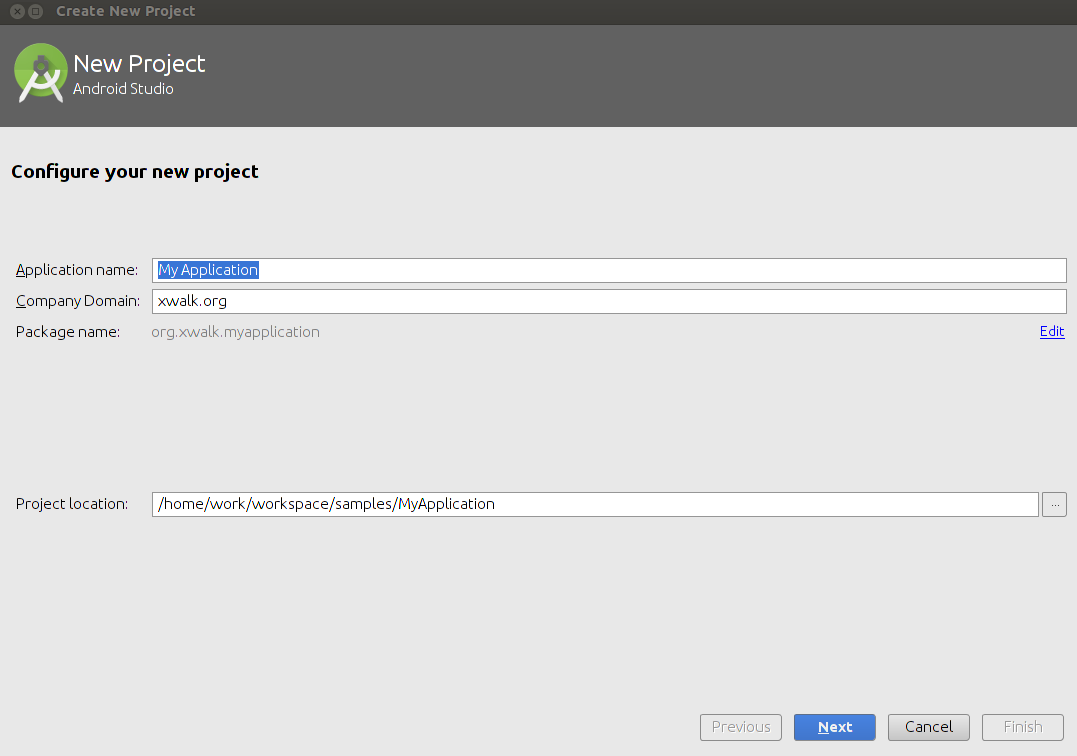
Click Next.
In the Target Android Devices panel, set the minimum SDK version. Currently the Crosswalk Project runtime supports 4.1 and above.
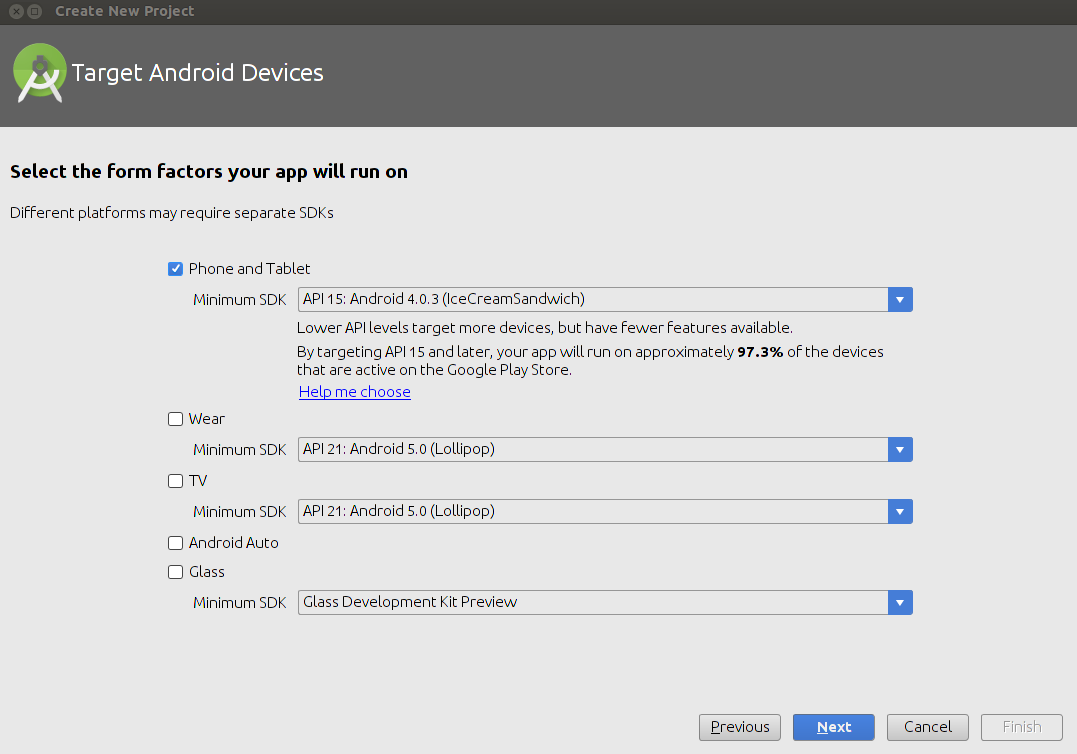
Click Next.
In the Add an activity to Mobile panel, select Blank Activity:
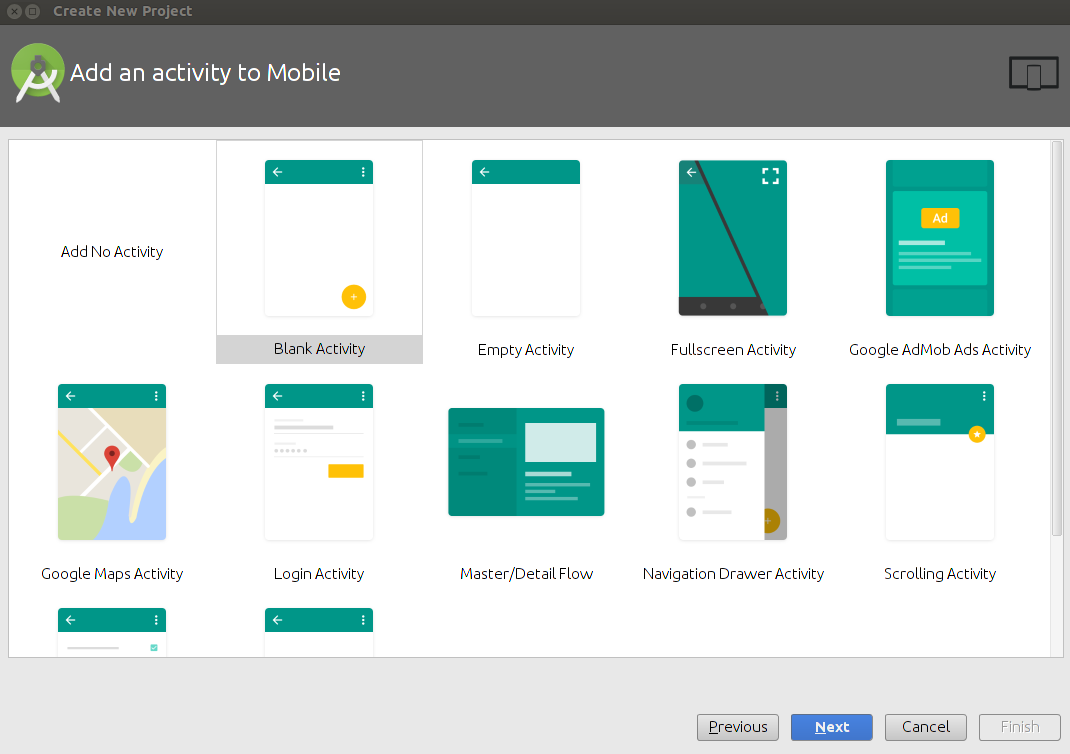
Click Next.
Fill in the Customize the Activity panel as follows:
- Activity Name: MainActivity
- Layout Name: activity_main
- Title: MainActivity
- Menu Resource Name: menu_main
It should look like this:
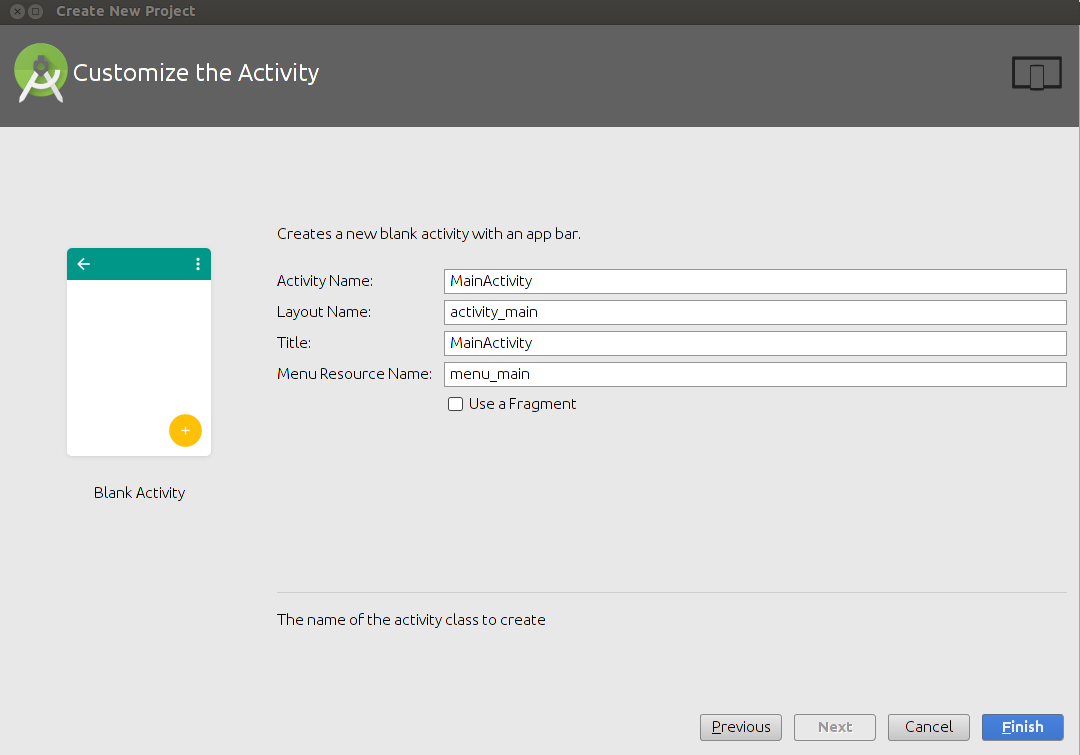
Click Finish.
Import the Crosswalk webview project into Android Studio
Select File > Project Structure
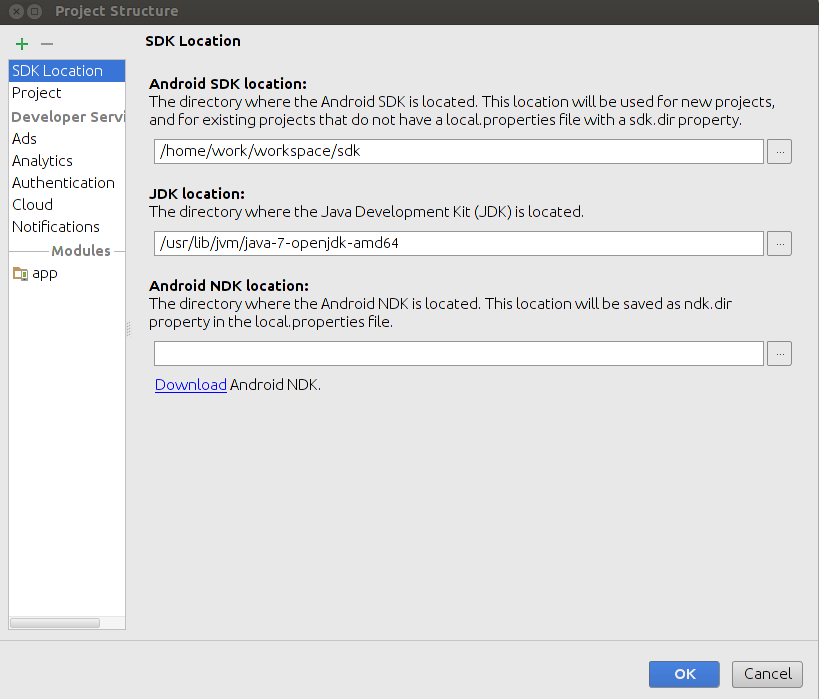
Click the + button at the top-left corner.
In the New Module panel, select Import .JAR/.AAR Package
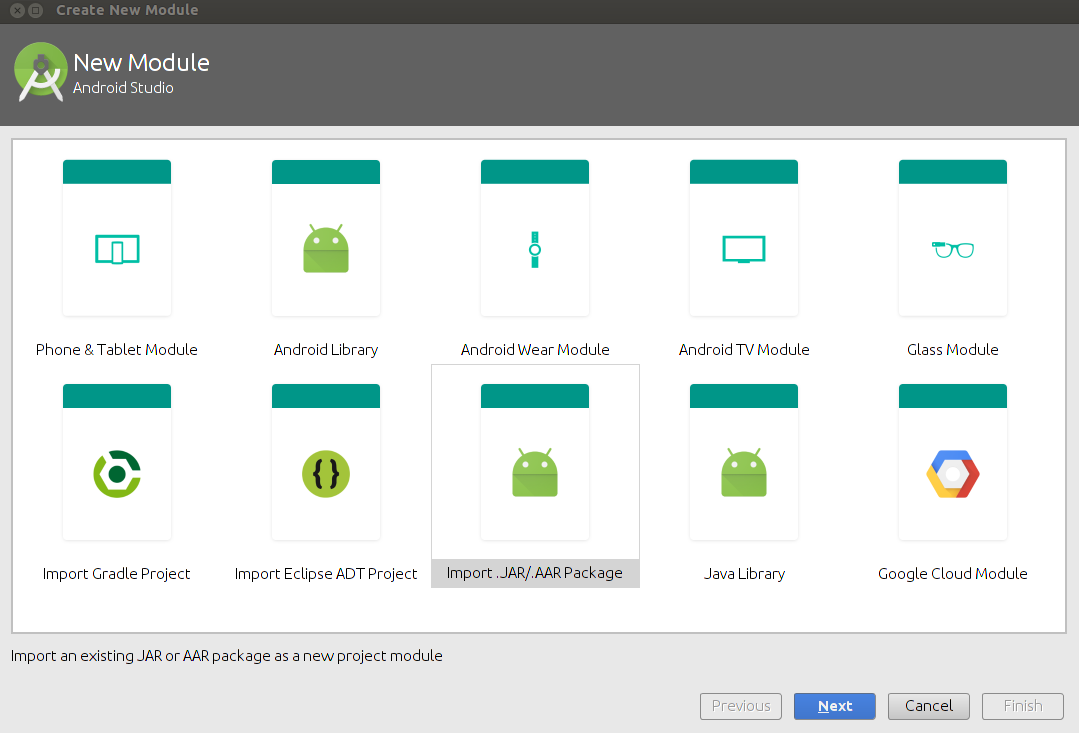
Click Next.
In the Create New Module panel, choose
xwalk_core_library.aarfrom the unzipped Crosswalk webview bundle you downloaded. If you use the shared version of the Crosswalk Project runtime, choosexwalk_shared_library.aar.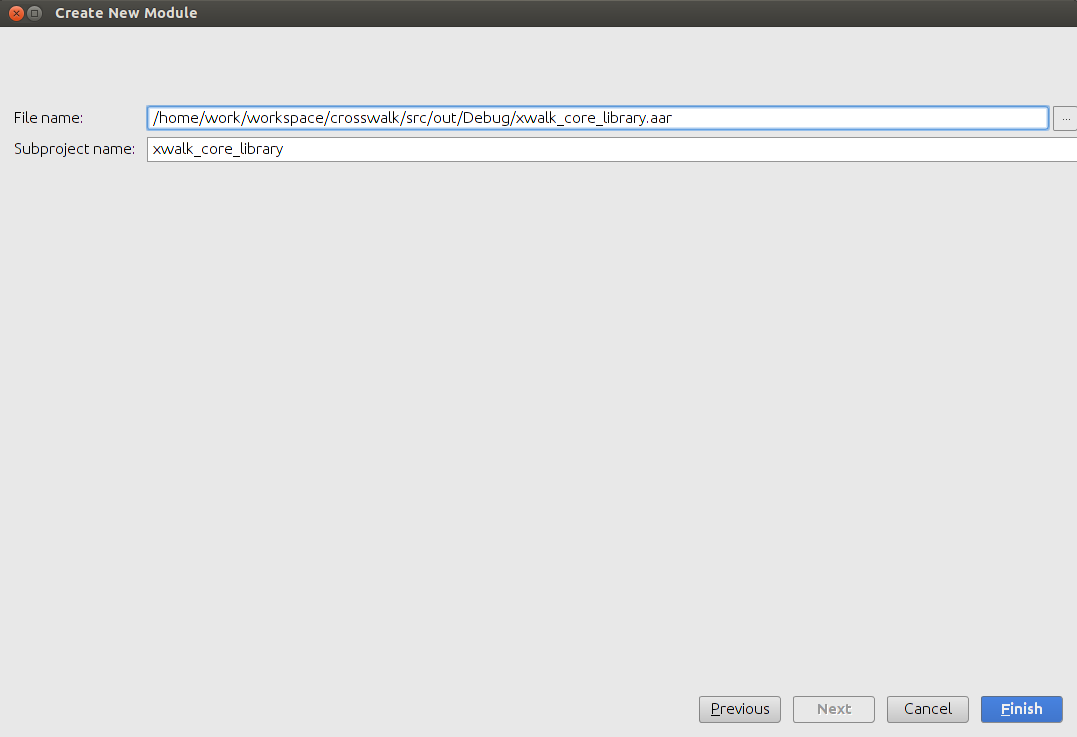
Click Finish.
A new module named
xwalk_core_librarywill appear in the left column of the Project Structure panel.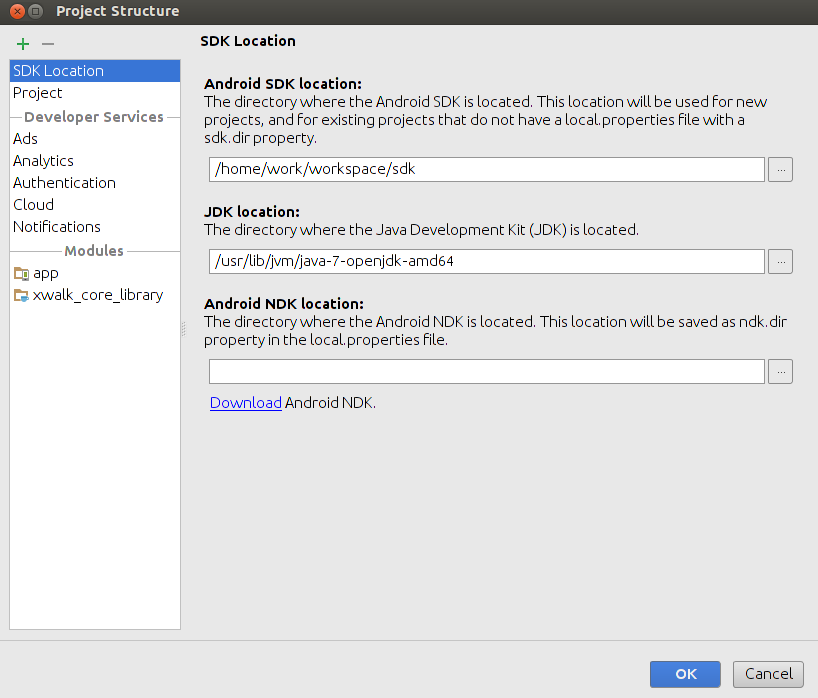
Select the app module in the left column and then select the Dependencies tab in the right.
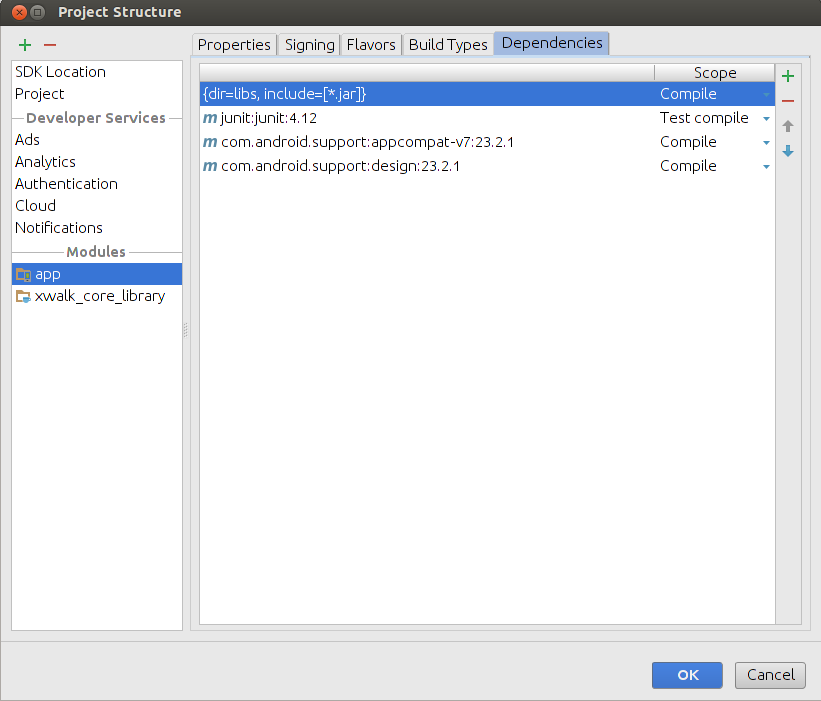
Click the + button at the top-right corner and select 3 Module dependency.
In the Choose Modules panel, select xwalk_core_library.
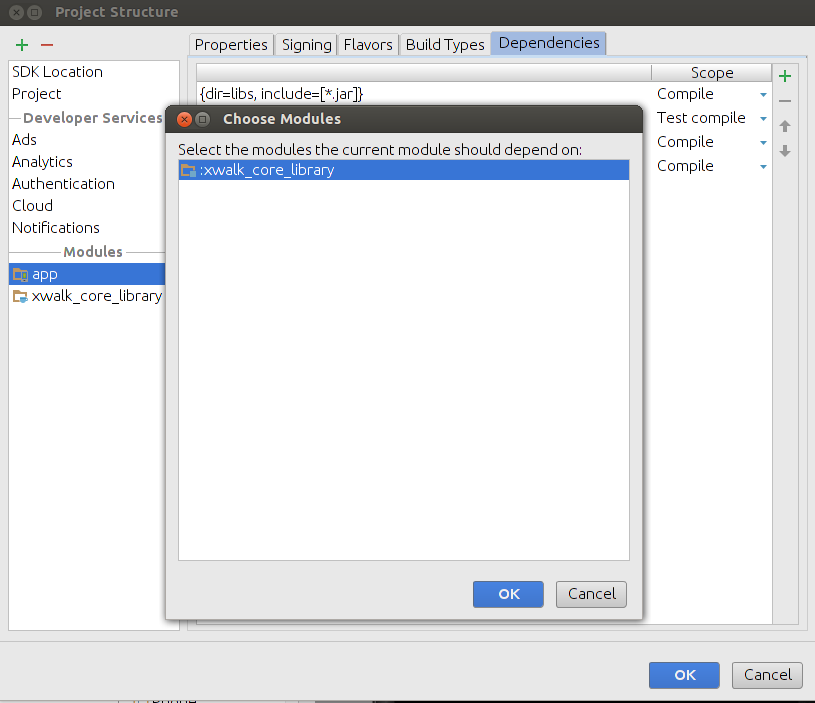
Click OK.
The
xwalk_core_libraryshould appear in the dependency list of current project.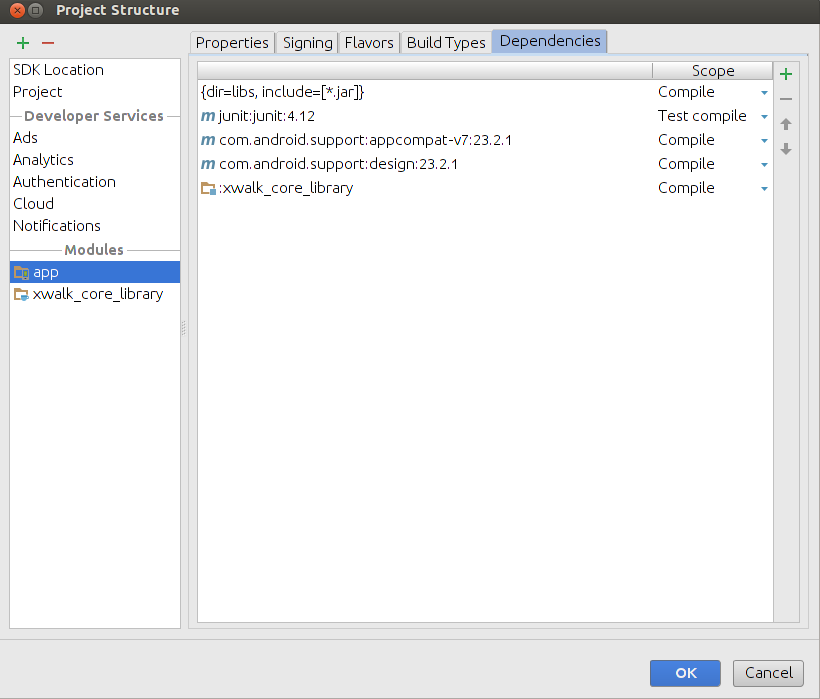
Click OK.
The reference to the Crosswalk Project runtime should now be added to your project.
Add code to integrate the Crosswalk webview
Add necessary permissions
Crosswalk requires a few permissions to be enabled on Android. To enable these, modify the AndroidManifest.xml file, adding permission lines before the <application> element.
The minimal permissions required for the Crosswalk webview to render pages are:
<uses-permission android:name="android.permission.ACCESS_NETWORK_STATE" />
<uses-permission android:name="android.permission.INTERNET" />
<uses-permission android:name="android.permission.ACCESS_WIFI_STATE" />
If you want to take advantage of download mode, the following permissions is required:
<uses-permission android:name="android.permission.WRITE_INTERNAL_STORAGE" />
<uses-permission android:name="android.permission.DOWNLOAD_WITHOUT_NOTIFICATION" />
Depending on the features of your app, you may need to request additional permissions. It is considered good security practice on Android to request only those permissions that your app actually needs.
Accessing Location Information
<uses-permission android:name="android.permission.ACCESS_FINE_LOCATION" />Accessing Camera, Video and Microphone:
<uses-permission android:name="android.permission.CAMERA" />
<uses-permission android:name="android.permission.MODIFY_AUDIO_SETTINGS" />
<uses-permission android:name="android.permission.RECORD_AUDIO" />
Writing data to SD Card:
<uses-permission android:name="android.permission.WRITE_EXTERNAL_STORAGE" />Keeping Screen On:
<uses-permission android:name="android.permission.WAKE_LOCK" />Edit the layout file
When the application was generated, some default layout resources were added to the project. Add a single XWalkView (Crosswalk webview) resource to a proper place in the main layout resource file (res/layout/activity_main.xml) like this:
<org.xwalk.core.XWalkView
        android:id="@+id/xwalkview"
        android:layout_width="match_parent"
        android:layout_height="match_parent" />
Edit the Activity class
There are three running modes of Crosswalk webview: embedded mode, shared mode and download mode. The next sections describe each of these. For more details of each class, please refer to the Embedding API page.
While following the instructions below, the developer who is familiar with Android WebView would notice that the usage of Crosswalk webview has some differences. That is because, unlike Android webview, the Crosswalk Project runtime hasn’t been prepared yet at the moment the activity is created, so there will be an extra process for initializing the Crosswalk environment. Before it is ready, you can’t arbitrarily use the embedding API.
Embedded Mode/Shared Mode
The embedded mode and shared mode can share the same code, the only difference is which AAR file to be imported. There are two types of interfaces:
XWalkActivityis an all-in-one interface and easily-used,XWalkInitializer/XWalkUpdateris more professional and gives the developer more control.XWalkActivity
XWalkActivityhelps to execute all procedures to make the Crosswalk runtime workable and displays dialogs to interact with the user if needed. The activities that hold theXWalkViewobjects might want to extendXWalkActivityto obtain this capability. For those activities, there's no need to useXWalkInitializerandXWalkUpdater.public class MyActivity extends XWalkActivity { XWalkView mXWalkView; @Override protected void onCreate(Bundle savedInstanceState) { super.onCreate(savedInstanceState); // Until onXWalkReady() is invoked, you should do nothing with the // embedding API except the following: // 1. Instanciate the XWalkView object // 2. Call XWalkPreferences.setValue() // 3. Call XWalkView.setUIClient() // 4. Call XWalkView.setResourceClient() setContentView(R.layout.activity_main); mXWalkView = (XWalkView) findViewById(R.id.xwalkview); } @Override public void onXWalkReady() { // Do anyting with the embedding API mXWalkView.load("http://crosswalk-project.org/", null); } }XWalkInitializer
XWalkInitializeris an alternative toXWalkActivitywith the difference that it provides a way to initialize the Crosswalk Project runtime in background silently. Another advantage is that the developer can use their own activity class directly rather than having it extendXWalkActivity. However,XWalkActivityis still recommended because it makes the code simpler.If the initialization failed, which means the Crosswalk runtime doesn't exist or doesn't match the app, you can use
XWalkUpdaterto prompt the user to download a suitable Crosswalk Project runtime.public class MyActivity extends Activity implements XWalkInitializer.XWalkInitListener { XWalkView mXWalkView; XWalkInitializer mXWalkInitializer; @Override protected void onCreate(Bundle savedInstanceState) { super.onCreate(savedInstanceState); // Must call initAsync() before anything that involes the embedding // API, including invoking setContentView() with the layout which // holds the XWalkView object. mXWalkInitializer = new XWalkInitializer(this, this); mXWalkInitializer.initAsync(); // Until onXWalkInitCompleted() is invoked, you should do nothing // with the embedding API except the following: // 1. Instanciate the XWalkView object // 2. Call XWalkPreferences.setValue() // 3. Call XWalkView.setUIClient() // 4. Call XWalkView.setResourceClient() setContentView(R.layout.activity_xwalkview); mXWalkView = (XWalkView) findViewById(R.id.xwalkview); } @Override public void onXWalkInitCompleted() { // Do anyting with the embedding API mXWalkView.load("http://crosswalk-project.org/", null); } @Override public void onXWalkInitStarted() { } @Override public void onXWalkInitCancelled() { // Perform error handling here } @Override public void onXWalkInitFailed() { // Perform error handling here, or launch the XWalkUpdater } }XWalkUpdater
XWalkUpdateris a follow-up solution forXWalkInitializerin case the initialization failed. The user ofXWalkActivitydoesn't need to use this class.XWalkUpdaterhelps to download the Crosswalk Project runtime and displays dialogs to interact with the user. By default, it will navigate to the location of the Crosswalk Project runtime in the default application store. The user must then take action to download it. If you specify the download URL of the Crosswalk runtime, it will automatically launch the download manager and fetch the APK.
After the proper Crosswalk Project runtime is downloaded and installed, the user will return to the current activity from the application store or the installer. The developer should check this point and invoke XWalkInitializer.initAsync() again to repeat the initialization process. Please note that from now on, the application will be running in shared mode.
```public class MyActivity extends Activity implements XWalkInitializer.XWalkInitListener, XWalkUpdater.XWalkUpdateListener { XWalkUpdater mXWalkUpdater;
 ...

 @Override
 protected void onResume() {
     super.onResume();

     // Try to initialize again when the user completed updating and
     // returned to current activity. The initAsync() will do nothing if
     // the initialization has already been completed successfully.
     mXWalkInitializer.initAsync();
 }

 @Override
 public void onXWalkInitFailed() {
     if (mXWalkUpdater == null) {
         mXWalkUpdater = new mXWalkUpdater(this, this);
     }

     // The updater won't be launched if previous update dialog is
     // showing.
     mXWalkUpdater.updateXWalkRuntime();
 }

 @Override
 public void onXWalkUpdateCancelled() {
     // Perform error handling here
 }
}
```If you want the end-user to download the Crosswalk Project runtime from a specific URL instead of switching to the application store, add following
<meta-data android:name="xwalk_apk_url"
           android:value="http://myhost/XWalkRuntimeLib.apk" />
Download Mode
You need to use the combination of
XWalkInitializerandXWalkUpdaterto take advantage of download mode. But the usage is slightly different from the instruction above.First, add the following
<meta-data>element inside the<application>element:<meta-data android:name="xwalk_apk_url" android:value="http://myhost/XWalkRuntimeLib.apk" /> <meta-data android:name="xwalk_enable_download_mode" android:value="enable"/>By default, the application will verify the signature of the downloaded Crosswalk Project runtime, which is required to be the same as the application. You can disable this by adding the following meta-data element:
<meta-data android:name="xwalk_verify" android:value="disable"/>Then edit the
Activityclass like this:public class MyActivity extends Activity implements XWalkInitializer.XWalkInitListener, XWalkUpdater.XWalkBackgroundUpdateListener { XWalkInitializer mXWalkInitializer; XWalkUpdater mXWalkUpdater; XWalkView mXWalkView; @Override protected void onCreate(Bundle savedInstanceState) { super.onCreate(savedInstanceState); mXWalkInitializer = new XWalkInitializer(this, this); mXWalkInitializer.initAsync(); setContentView(R.layout.activity_main); mXWalkView = (XWalkView) findViewById(R.id.xwalkview); } @Override protected void onResume() { super.onResume(); mXWalkInitializer.initAsync(); } @Override public void onXWalkInitStarted() { } @Override public void onXWalkInitCancelled() { finish(); } @Override public void onXWalkInitFailed() { if (mXWalkUpdater == null) mXWalkUpdater = new XWalkUpdater(this, this); mXWalkUpdater.updateXWalkRuntime(); } @Override public void onXWalkInitCompleted() { mXWalkView.load("file:///android_asset/create_window_1.html", null); } @Override public void onXWalkUpdateStarted() { } @Override public void onXWalkUpdateProgress(int percentage) { } @Override public void onXWalkUpdateCancelled() { finish(); } @Override public void onXWalkUpdateFailed() { finish(); } @Override public void onXWalkUpdateCompleted() { mXWalkInitializer.initAsync(); } }
Debugging Crosswalk webview
To enable debugging of the web application running in an embedded Crosswalk webview, modify the Activity class like this:
public class MyActivity extends XWalkActivity {
     XWalkView mXWalkView;

     @Override
     protected void onCreate(Bundle savedInstanceState) {
         super.onCreate(savedInstanceState);

         XWalkPreferences.setValue(XWalkPreferences.REMOTE_DEBUGGING, true);
         setContentView(R.layout.activity_main);
         mXWalkView = (XWalkView) findViewById(R.id.xwalkview);
     }

     ...
 }